Export
Download the Project files
- Click the “Export” button in the top right corner of the video
- Select “Project” and click “Export”
- Download and extract the downloaded ZIP file
Download the Fonts
- Click the “Export” button in the top right corner of the video
- Select “Font” and click on every font you want to download
Import
Import to Adobe Premiere
- Open a new project in Adobe Premiere
- Click
File > Import - Browse to the
*.xmlfile inside the extracted folder - Click Open
- Locate the sequence in the media list and drag & drop it to the timeline
More info in this guide.
Import to Davinci Resolve
- Open a new project in Davinci Resolve
- Right click the timeline
- Select
Timelines > Import > AAF / EDF / XML... - Browse to the
*.fcpmxlfile inside the extracted folder - Click Open
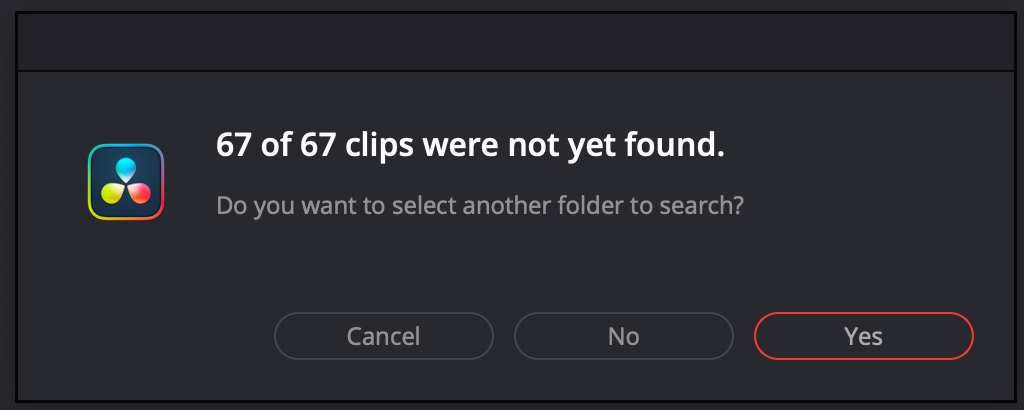
- If you get a prompt about not found clips, click “Yes” and relink them selecting the folder were you extracted the ZIP file
Full example in this video.
Import to Final Cut Pro
- Find and double-click the
*.fcpmxlfile inside the extracted folder - follow the prompts in Final Cut Pro.
Related Posts
Create rich Stories
Instantly generate and refine stories from your lyrics, now with richer, more human characters by default.
How to Make a Lyric Video with AI
Learn to make lyric videos with AI in minutes using LyricEdits